

Setup MS Direct Routing
@import url('https://fonts.googleapis.com/css2?family=Host+Grotesk:wght@300;400;600;800&display=swap');

  .fdt-hub ~ .fdt-hub { display: none !important; }

  .fdt-hub {
    --fd-navy:        #003366;
    --fd-blue:        #307ab2;
    --fd-blue-bright: #38b2e3;
    --fd-red:         #cf333d;
    --fd-body:        #2e404d;
    --fd-secondary:   #8f9499;
    --fd-bg-mid:      #dedede;
    --fd-bg-light:    #f0f0f0;
    --fd-ice:         #e3f1f8;
    --fd-white:       #ffffff;
    --fd-alert-bg:    #fdf2f2;
    --fd-alert-border:#f8b4b4;
  }

  .fdt-hub, .fdt-hub * { box-sizing: border-box; }

  .fdt-hub {
    font-family: 'Host Grotesk', 'Segoe UI', -apple-system, BlinkMacSystemFont, Arial, sans-serif;
    font-weight: 300;
    color: var(--fd-body);
    background: var(--fd-white);
    max-width: 1000px;
    margin: 0 auto;
    padding: 0 20px 30px;
    -webkit-font-smoothing: antialiased;
  }

  /* ---- Masthead ---- */
  .fdt-masthead {
    display: flex;
    align-items: center;
    justify-content: space-between;
    gap: 20px;
    flex-wrap: wrap;
    padding: 22px 0 18px;
    border-bottom: 1px solid var(--fd-bg-mid);
  }

  .fdt-masthead img { height: 46px; width: auto; display: block; }

  .fdt-masthead-label {
    font-size: 12px;
    font-weight: 600;
    letter-spacing: 0.16em;
    text-transform: uppercase;
    color: var(--fd-secondary);
    white-space: nowrap;
  }

  /* ---- Hero ---- */
  .fdt-hero {
    margin-top: 22px;
    border-radius: 6px;
    padding: 34px 34px 32px;
    background: linear-gradient(100deg, var(--fd-navy) 0%, var(--fd-navy) 56%, var(--fd-blue) 100%);
  }

  .fdt-rule {
    width: 62px; height: 4px;
    background: var(--fd-red);
    border: 0;
    margin: 0 0 16px;
  }

  .fdt-eyebrow {
    font-size: 16px;
    font-weight: 600;
    letter-spacing: 0.18em;
    text-transform: uppercase;
    color: var(--fd-blue-bright);
    margin-bottom: 9px;
  }

  .fdt-hero h1 {
    font-size: clamp(26px, 3.6vw, 36px);
    font-weight: 800;
    line-height: 1.14;
    letter-spacing: -0.01em;
    color: var(--fd-white);
    margin: 0 0 12px;
  }

  .fdt-hero p {
    font-size: 15.5px;
    font-weight: 300;
    line-height: 1.62;
    color: #dbe6ef;
    margin: 0;
    max-width: 650px;
  }

  /* ---- Content Sections ---- */
  .fdt-section {
    margin-top: 36px;
  }

  .fdt-section-title {
    font-size: 22px;
    font-weight: 800;
    color: var(--fd-navy);
    margin: 0 0 16px 0;
    border-bottom: 2px solid var(--fd-ice);
    padding-bottom: 8px;
  }

  .fdt-text {
    font-size: 15px;
    line-height: 1.6;
    margin-bottom: 16px;
  }

  .fdt-card {
    background: var(--fd-white);
    border: 1px solid var(--fd-bg-mid);
    border-radius: 6px;
    padding: 24px;
    margin-bottom: 20px;
  }

  .fdt-alert {
    background-color: var(--fd-alert-bg);
    border-left: 4px solid var(--fd-red);
    padding: 16px 20px;
    border-radius: 0 6px 6px 0;
    margin: 20px 0;
    font-size: 14.5px;
    line-height: 1.5;
    color: #8a1f26;
  }

  .fdt-alert strong {
    color: var(--fd-red);
  }

  /* ---- Step-by-Step List ---- */
  .fdt-steps {
    list-style: none;
    padding: 0;
    margin: 0;
    counter-reset: fdt-counter;
  }

  .fdt-step-item {
    position: relative;
    padding-left: 48px;
    margin-bottom: 24px;
  }

  .fdt-step-item::before {
    counter-increment: fdt-counter;
    content: counter(fdt-counter);
    position: absolute;
    left: 0;
    top: 0;
    width: 32px;
    height: 32px;
    background-color: var(--fd-ice);
    color: var(--fd-navy);
    font-weight: 700;
    border-radius: 50%;
    display: flex;
    align-items: center;
    justify-content: center;
    font-size: 14px;
  }

  .fdt-step-item strong {
    color: var(--fd-navy);
  }

  .fdt-step-img {
    margin-top: 14px;
    max-width: 100%;
    height: auto;
    border: 1px solid var(--fd-bg-mid);
    border-radius: 6px;
    box-shadow: 0 4px 12px rgba(0,0,0,0.05);
  }

  /* ---- Data Tables ---- */
  .fdt-table-wrapper {
    overflow-x: auto;
    margin-top: 16px;
  }

  .fdt-table {
    width: 100%;
    border-collapse: collapse;
    text-align: left;
    font-size: 14px;
  }

  .fdt-table th, .fdt-table td {
    padding: 12px 16px;
    border: 1px solid var(--fd-bg-mid);
  }

  .fdt-table th {
    background-color: var(--fd-ice);
    color: var(--fd-navy);
    font-weight: 700;
  }

  .fdt-table td code {
    background: var(--fd-bg-light);
    padding: 2px 6px;
    border-radius: 4px;
    font-family: monospace;
    font-size: 13px;
  }

  /* ---- Footer ---- */
  .fdt-footer {
    margin-top: 40px;
    padding-top: 18px;
    border-top: 1px solid var(--fd-bg-mid);
    display: flex;
    justify-content: space-between;
    gap: 16px;
    flex-wrap: wrap;
    font-size: 12.5px;
    color: var(--fd-secondary);
  }

  @media (max-width: 720px) {
    .fdt-hub { padding: 0 12px 24px; }
    .fdt-masthead img { height: 38px; }
    .fdt-hero { padding: 26px 22px 24px; }
    .fdt-footer { justify-content: flex-start; }
  }
 Fiber · Internet · Cloud · Voice
Configure Microsoft Direct Routing
This Initial Setup guide will walk you through configuring Direct Routing in The Portal.
Direct Routing is a Microsoft Teams-only offering[cite: 10]. To set up Direct Routing, you will complete the following stages[cite: 10]:
- 1. Get or verify your Microsoft licensing[cite: 10]
2. Validate your tenant and configure Direct Routing[cite: 10]
3. Microsoft iPILOT App Permission Reduction (optional)[cite: 10]
1. Get or Verify Your Microsoft Licensing
2. Validate Your Tenant & Configure Direct Routing
Once licensing is verified, you will install the Microsoft iPILOT App to assist in your tenant's automatic validation and configuration[cite: 10].
- Sign in to The Portal using SSO or your credentials[cite: 10]. (If this is your first time signing in, complete the quick introduction walkthrough[cite: 10].)
-
Navigate to Settings > Integration[cite: 10].
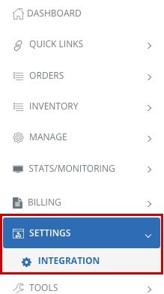 Integration Menu Navigation" />
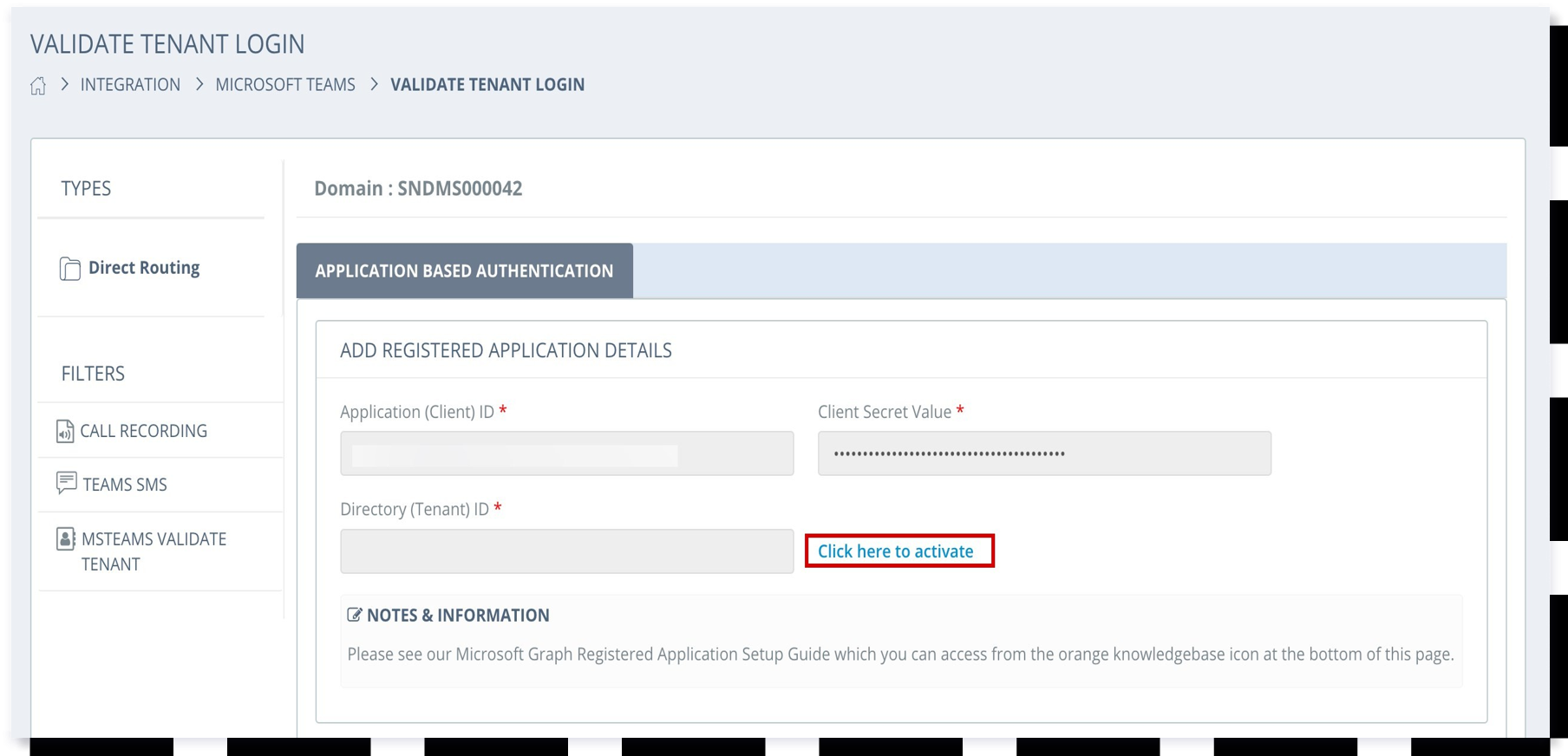
- Select MSTEAMS Validate Tenant[cite: 10].
-
In the Add Registered App Details section, select Click here to activate[cite: 10].
IMPORTANT: When activating, you must authenticate as a Global Administrator in the tenant where you are configuring Direct Routing[cite: 10].
-
This will start the installation of the new App. Click Accept to install the App[cite: 10].
-
The Microsoft iPILOT App requires the Teams Administrator role to validate and configure Direct Routing successfully[cite: 10].
Go to Azure Active Directory > Roles & Admins and select Roles & Admins[cite: 10]. Under Administrative roles, search for Teams Administrator, select its checkbox, and click Add Assignment[cite: 10].
Search for the iPILOT App, confirm the App ID is
0c88dfb3-a8b1-419d-b6fb-0956cdd5790d, select it, and click Add[cite: 10]. - Navigate back to The Portal[cite: 10]. You should see the VALIDATED status for each region once successfully configured[cite: 10]. You're ready to start assigning users phone numbers and testing services[cite: 10]!
3. Microsoft iPILOT App Permission Reduction (Optional)
Permission reduction supports standard security practices[cite: 10].
- 1. Go to
- Enterprise Apps in the Microsoft Entra admin center[cite: 10].
2. Search for the iPILOT App (not the iPILOT SSO App) and select it[cite: 10].
3. Select Permissions[cite: 10].
4. Click the three dots menu next to the following permissions and select Revoke Permission[cite: 10]:- •
Domain.ReadWrite.All[cite: 10]
•User.ReadWrite.All[cite: 10]
Additional Information: MFA & Trusted IP Addresses
If you choose to enable Multi-Factor Authentication (MFA) for your Service Account or have other conditional policies, you must add the following IP addresses to the trusted section in the MFA Service Settings or from your conditional access policies[cite: 10]:
| North America[cite: 10] | Europe[cite: 10] |
|---|---|
204.10.95.128/25[cite: 10] |
66.178.136.192/27[cite: 10] |
74.119.9.32/27[cite: 10] |
66.178.137.192/27[cite: 10] |
204.10.94.64/27[cite: 10] |
— |