

Configure CCP in Control Hub
Version 13.1 by Aaron Blackburn on 2026/09/25 20:16
  @import url('https://fonts.googleapis.com/css2?family=Host+Grotesk:wght@300;400;500;600;700;800&display=swap');

  .fd-guide, .fd-guide * {
    box-sizing: border-box;
  }

  .fd-guide {
    --fd-navy: #003366;
    --fd-dark-navy: #001a33;
    --fd-blue: #307ab2;
    --fd-sky: #38b2e3;
    --fd-red: #cf333d;
    --fd-slate: #2e404d;
    --fd-grey: #8f9499;
    --fd-lightgrey: #e2e8f0;
    --fd-offwhite: #f8fafc;
    --fd-max-w: 1000px;

    display: block;
    font-family: 'Host Grotesk', system-ui, -apple-system, sans-serif;
    color: var(--fd-slate);
    background: #ffffff;
    max-width: var(--fd-max-w);
    margin: 0 auto;
    padding: 0 20px 40px;
    -webkit-font-smoothing: antialiased;
  }

  .fd-guide .fd-breadcrumbs {
    display: flex;
    align-items: center;
    gap: 8px;
    font-size: 0.85rem;
    color: var(--fd-grey);
    margin-bottom: 16px;
    padding-top: 12px;
  }

  .fd-guide .fd-breadcrumbs a {
    color: var(--fd-blue);
    text-decoration: none;
    font-weight: 600;
  }

  .fd-guide .fd-breadcrumbs a:hover {
    text-decoration: underline !important;
  }

  .fd-guide .guide-header {
    border-bottom: 2px solid var(--fd-lightgrey);
    padding-bottom: 24px;
    margin-bottom: 32px;
  }

  .fd-guide .guide-header h1 {
    color: var(--fd-navy);
    font-weight: 800;
    font-size: 2.25rem;
    margin: 0 0 10px;
    letter-spacing: -0.02em;
    line-height: 1.2;
  }

  .fd-guide .guide-header p.subtitle {
    font-size: 1.05rem;
    color: var(--fd-slate);
    margin: 0;
    line-height: 1.5;
  }

  .fd-guide .callout {
    background: var(--fd-offwhite);
    border-left: 4px solid var(--fd-blue);
    border-radius: 0 8px 8px 0;
    padding: 16px 20px;
    margin-bottom: 32px;
    font-size: 0.95rem;
    line-height: 1.6;
  }

  .fd-guide .callout strong {
    color: var(--fd-navy);
  }

  .fd-guide .step-list {
    display: flex;
    flex-direction: column;
    gap: 40px;
  }

  .fd-guide .step-item {
    display: flex;
    gap: 20px;
    align-items: flex-start;
  }

  .fd-guide .step-number {
    flex-shrink: 0;
    width: 36px;
    height: 36px;
    background: var(--fd-navy);
    color: #ffffff;
    font-weight: 700;
    font-size: 1.1rem;
    border-radius: 50%;
    display: flex;
    align-items: center;
    justify-content: center;
    margin-top: 2px;
  }

  .fd-guide .step-content {
    flex-grow: 1;
  }

  .fd-guide .step-content h2 {
    color: var(--fd-navy);
    font-weight: 700;
    font-size: 1.35rem;
    margin: 0 0 12px;
    letter-spacing: -0.01em;
  }

  .fd-guide .step-content p {
    font-size: 0.98rem;
    line-height: 1.6;
    margin: 0 0 12px;
    color: var(--fd-slate);
  }

  .fd-guide .step-content ul {
    margin: 0 0 16px 20px;
    padding: 0;
    line-height: 1.6;
  }

  .fd-guide .step-content li {
    margin-bottom: 6px;
    font-size: 0.95rem;
  }

  .fd-guide .step-content code {
    background: var(--fd-offwhite);
    border: 1px solid var(--fd-lightgrey);
    padding: 2px 6px;
    border-radius: 4px;
    font-family: monospace;
    color: var(--fd-red);
  }

  .fd-guide .img-container {
    margin: 16px 0;
    background: var(--fd-offwhite);
    border: 1px solid var(--fd-lightgrey);
    border-radius: 12px;
    overflow: hidden;
    box-shadow: 0 4px 12px rgba(0, 30, 60, 0.05);
  }

  .fd-guide .img-container img {
    width: 100%;
    height: auto;
    display: block;
  }

  .fd-guide .img-caption {
    padding: 8px 14px;
    font-size: 0.82rem;
    color: var(--fd-grey);
    border-top: 1px solid var(--fd-lightgrey);
    background: #ffffff;
    font-style: italic;
  }

  .fd-guide footer {
    margin-top: 56px;
    padding-top: 24px;
    border-top: 1px solid var(--fd-lightgrey);
    display: flex;
    justify-content: space-between;
    align-items: center;
    font-size: 0.85rem;
    color: var(--fd-grey);
  }

  .fd-guide footer a {
    color: var(--fd-blue);
    text-decoration: none;
    font-weight: 600;
  }

  .fd-guide footer a:hover {
    text-decoration: underline !important;
  }

  @media (max-width: 768px) {
    .fd-guide .step-item {
      flex-direction: column;
      gap: 12px;
    }
  }
Configure Cloud Connected PSTN In Control Hub
FirstDigital.com · 800-240-4008
To configure Cloud Connected PSTN in Control Hub, you'll need to select "Cloud Connected PSTN" as the PSTN connection type, choose a CCP (Cloud Connected PSTN) provider, and add your phone numbers provided by the CCP[cite: 8].
1
Access Control Hub and Navigate to Locations
Sign in to Control Hub and Go to Management > Locations[cite: 8].
2
Select the Location and Choose PSTN Connection
Follow these steps to select your connection type[cite: 8]:
- Click on the specific location you want to configure for Cloud Connected PSTN[cite: 8].
- Go to the Calling sub-menu and click Set up calling (or Manage)[cite: 8].
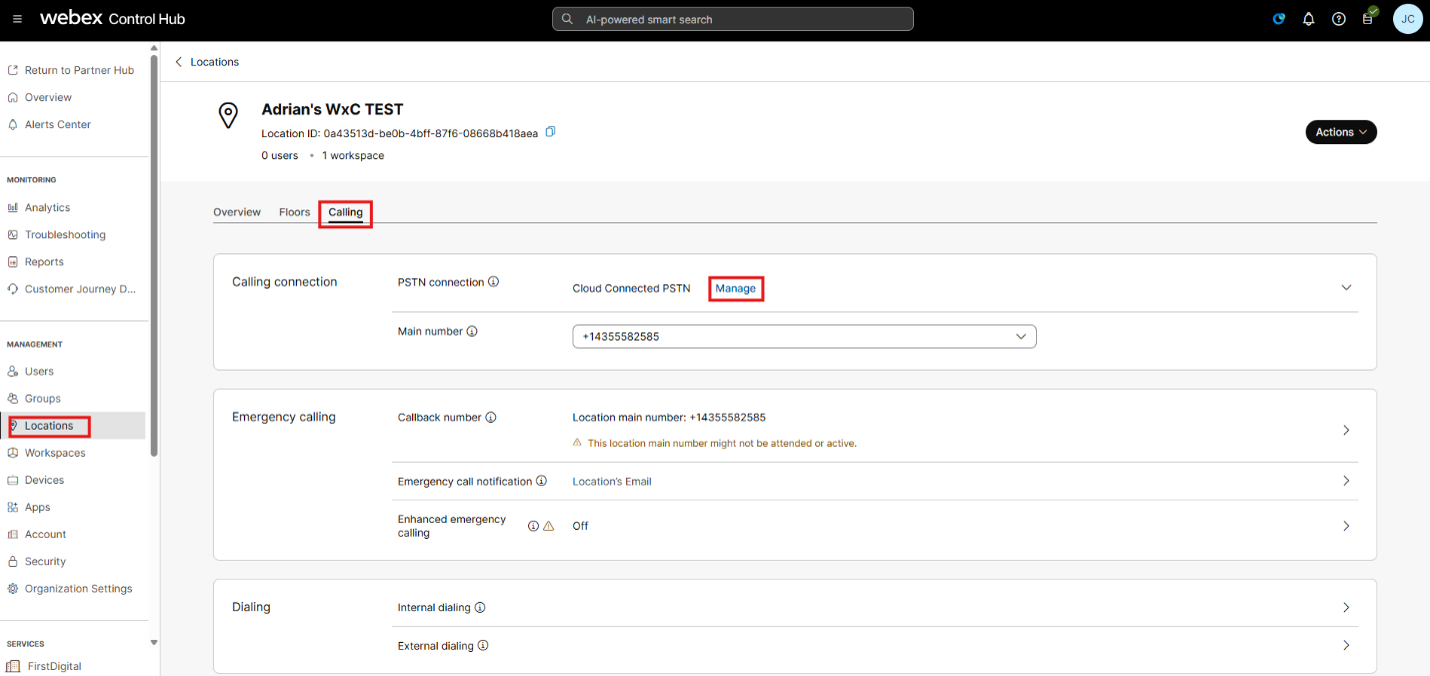
Figure 1.1: Location Calling menu and PSTN connection management[cite: 8].
- Choose "Cloud Connected PSTN" as the Connection Type[cite: 8].
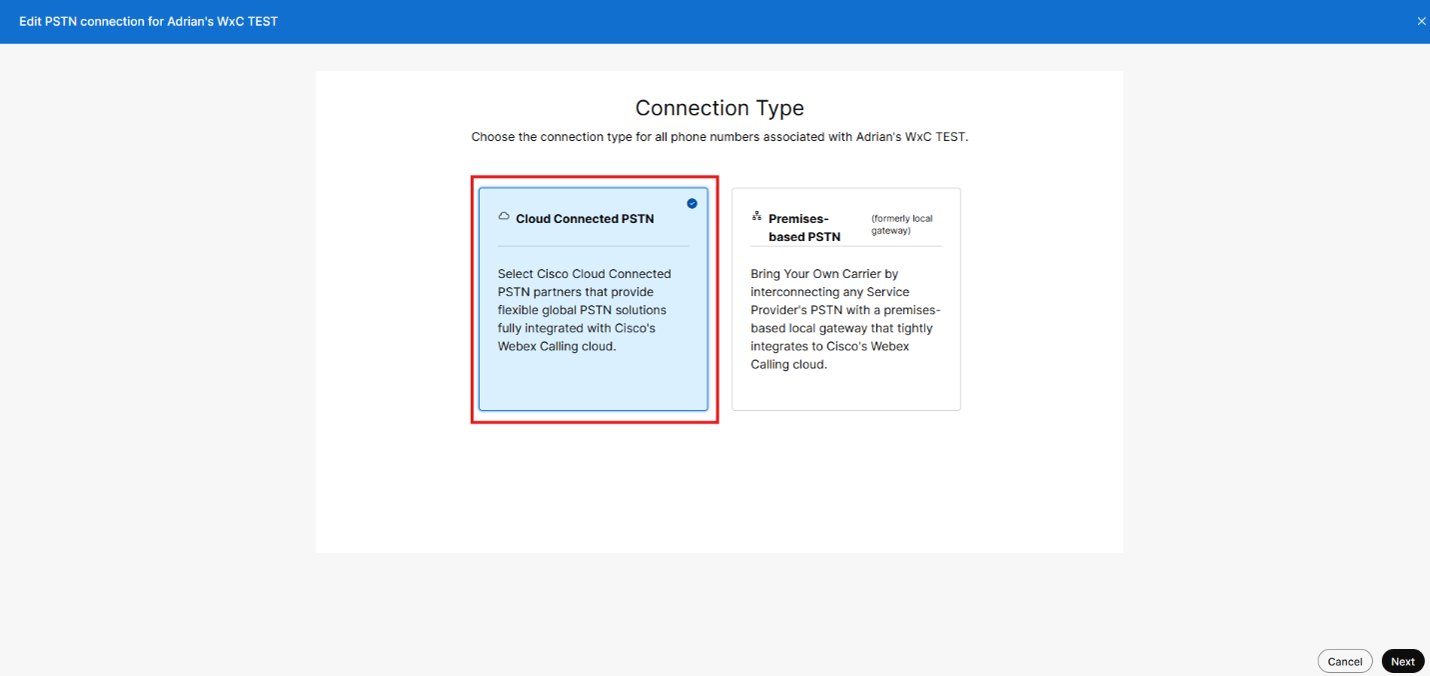
Figure 1.2: Selecting Cloud Connected PSTN as the connection type[cite: 8].
3
Select a CCP Provider
Choose your PSTN provider[cite: 8]:
- Select a Cloud Connected PSTN provider from the list (depending on your region)[cite: 8].
- Click Next[cite: 8].
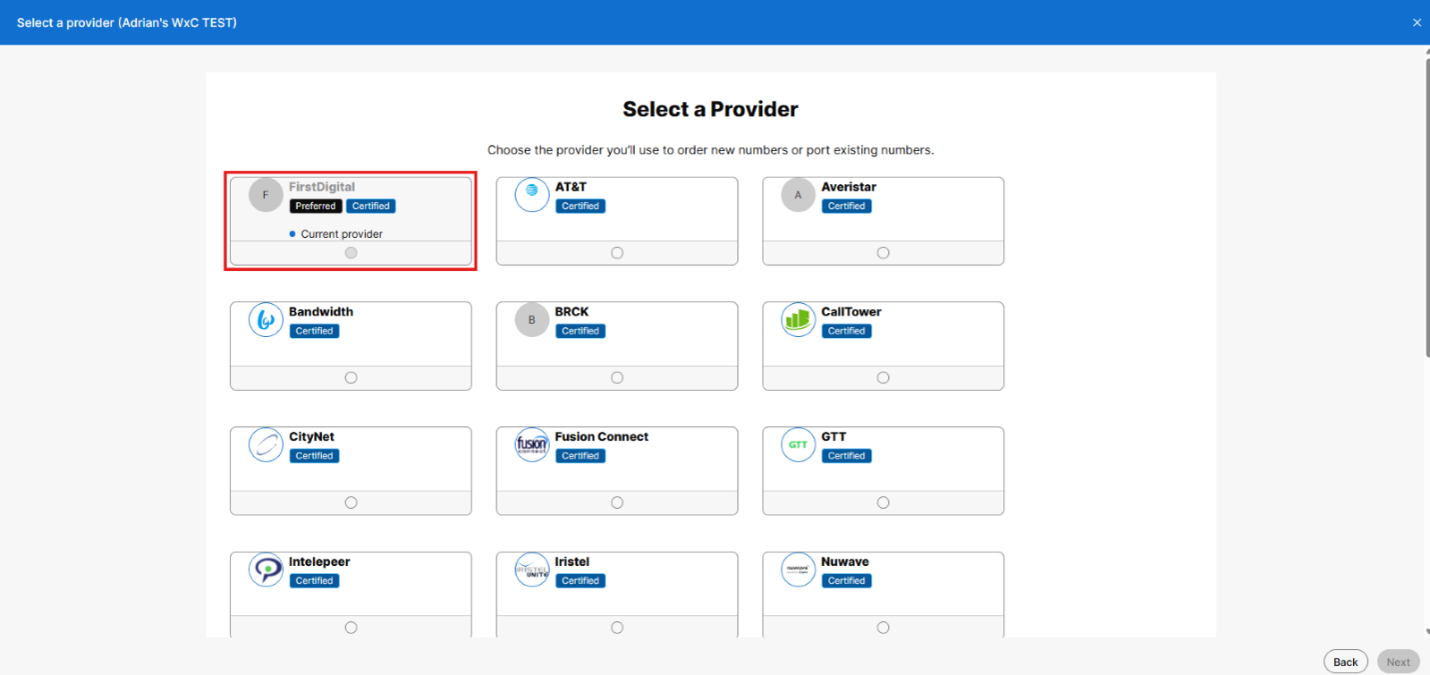
Figure 1.3: Selecting your CCP Provider[cite: 8].
4
Add Numbers
Assign your phone numbers[cite: 8]:
- Click "Add Numbers Now"[cite: 8].
- Enter the phone numbers you've obtained from your CCP provider, separated by commas if multiple[cite: 8].
- Click Save[cite: 8].
- Click Close on the Summary page[cite: 8].
5
Verify Numbers
Verify that your DIDs were assigned correctly[cite: 8]:
- Go to
Calling>Numbersto verify your added DIDs[cite: 8]. - You should see the DIDs you added listed here[cite: 8].